
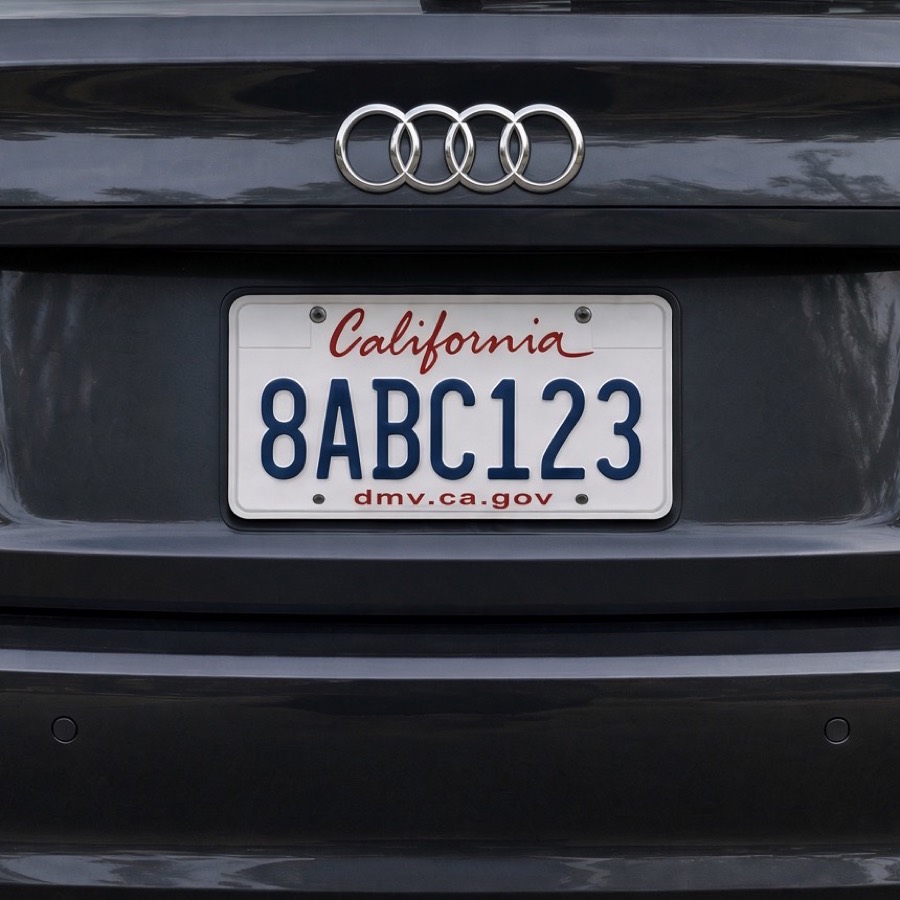
Read the plate. Pick the reply.
The plate reader is built into the Sticky Tickets app for iPhone and Android, so enforcers check plates with the phone they already carry. Automatic dispute responses match each dispute to a reply you wrote, and send it only when you allow it.
 Lot A, Main St.
How a plate check works on patrol.
Turn the plate reader on for the enforcement areas you choose, for users with permission to use it.
- Before the scan
The area's list loads
The phone gets the plates for the selected area: current or recently ended parking sessions from your connected payment providers, and the area's whitelist.
- Scanning
Point the camera
The app reads the plate live from the camera, on the phone. It waits until several reads agree on the same plate before it shows a result.
- On screen
Green, amber or red
Green for a strong match, amber for a close match, red for no match. Some green matches are expired or whitelisted and carry a tag.
- Logged
Saved to the vehicle log
With an area selected, the plate is logged as a plate-reader read and checked against tracking history.
Session data depends on each provider's timing, so confirm in the app before you ticket. Prefer to type? Enter a plate in Search by plate, then select Issue Ticket.
Looking for a permitting system? Try Chariot by BrightBase.
Chariot offers scan to park for visitors and monthly invoicing for recurring spots. Once your lots are linked, your enforcers see both kinds of permit when they check a plate.
Plates that keep coming back get flagged.
In areas with a parking tracking rule, the app shows an alert when a plate has been seen on enough different days within the area's tracking period to reach a threshold. Whitelisted plates aren't counted.
Warning
Reached the area's warning threshold.
Citation
Reached the area's citation threshold.
Boot-eligible
Reached the area's boot-eligible threshold.
Your replies. Your rules. Your hours.
Each dispute is matched to one of the replies you wrote. If none fits, or the dispute trips one of your limits, it goes to a person on your team.
- Replies are yours. It picks one of your replies, with the outcome you set: deny, reduce or void. It doesn't write new text.
- Amounts come from your rules. A reduction is calculated from your reduction rules, with a pay-by date (14 days by default).
- Sent in your hours. Replies go by email in your send hours (weekdays 8:00 AM to 6:00 PM by default), after the minimum wait you choose.
An optional add-on for parking operators. Contact us for pricing.
Ask us about the add-on- Repeat parker10 prior tickets
- Proof of paymentnone attached
- Active sessionsnone in Lot A
Only one path sends on its own. The rest waits for a person.
Automatic sending is optional, and you choose which replies may use it.
It looks up the plate's parking sessions, prior tickets and prior disputes. Over your amount, repeat-dispute or daily limit, it goes to a person. A limit of zero turns that check off.
The dispute is matched to one reply in your library and given a confidence score.
Only in Auto mode, when the score meets your threshold. It checks the ticket again just before sending: if it was paid, denied or handled, the reply isn't sent. A payment in the last moments before sending may not be caught.
Otherwise, at any step
Low scores, replies you set to always wait, void outcomes (by default) and any dispute the AI service can't answer all wait for a person to decide. Nothing is sent automatically when the AI service fails.
Sending mode · your call
Automatic responses are off.
Records the reply it would send. Sends nothing.
Holds each reply until your staff approve it.
Sends on its own only when the score clears your threshold and no limit or check applies.
Technology questions
What do enforcers need for the plate reader?
An iPhone or Android phone with the Sticky Tickets app and camera access. On Android, version 12 or later.
Does the plate reader send camera images to a cloud OCR service?
No. Plate text is read on the phone. With an area selected, the plate number is sent to our server and logged to the vehicle log.
How do we set up dispute responses?
Write your reply library, then set thresholds, limits and send hours in your dispute settings. You can test a reply against sample text first. A test sends nothing and uses AI credits.
What does the AI see?
Ticket details such as names, phone numbers, addresses and plate numbers are removed before the AI sees them. The text a disputer writes is passed to the AI as written.
How do drivers dispute a ticket?
They scan the QR code on the ticket, or enter the Notice ID on the public dispute page, and give a written reason. The reply goes to the email address they give.
Start with the areas you choose.
Add automatic dispute responses when you're ready.